 Sobati Fitness
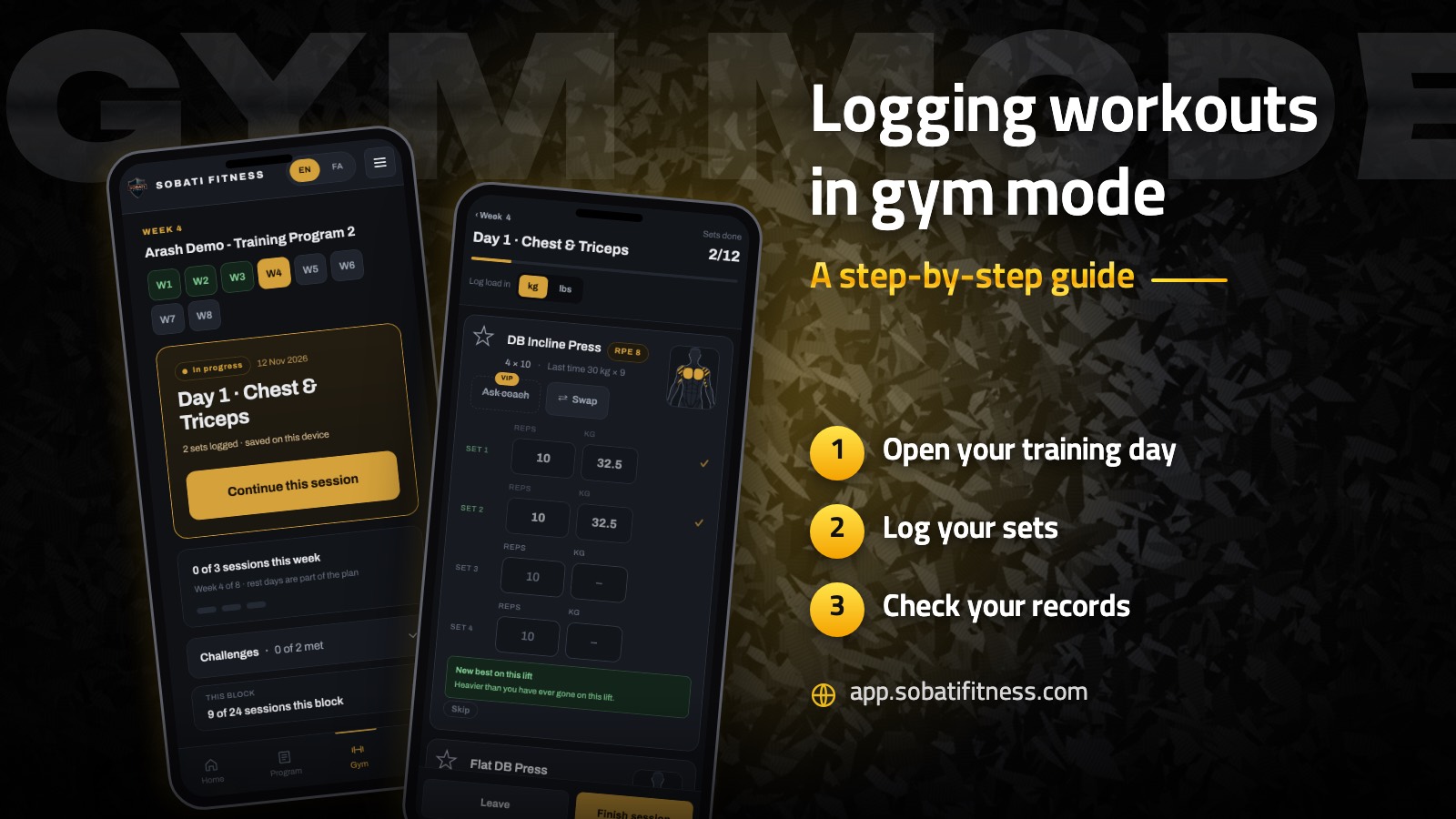
Gym mode is the part of the app built for the middle of a session. You see your training day on one screen and log the weight and reps you actually did, right there. In this guide I'll show you where to find it and how logging works.
1. Open gym mode
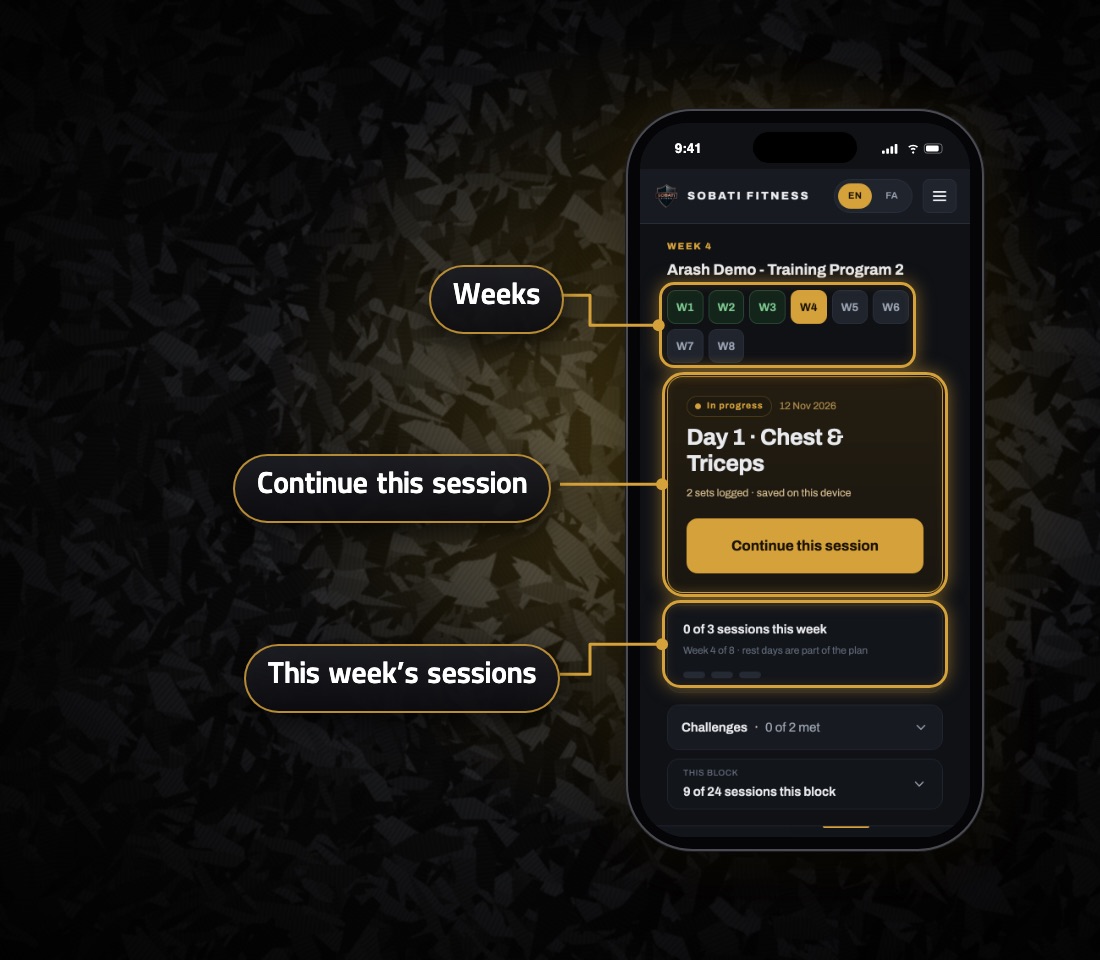
Tap the Gym tab at the bottom of the app. The first screen shows you:
- a “Continue this session” card if you left a session halfway
- this week's sessions
- the list of training days in your block
Pick the day you're training. Gym mode opens on the latest week you've logged. To move to the next week, tap that week's number.
2. Log your sets
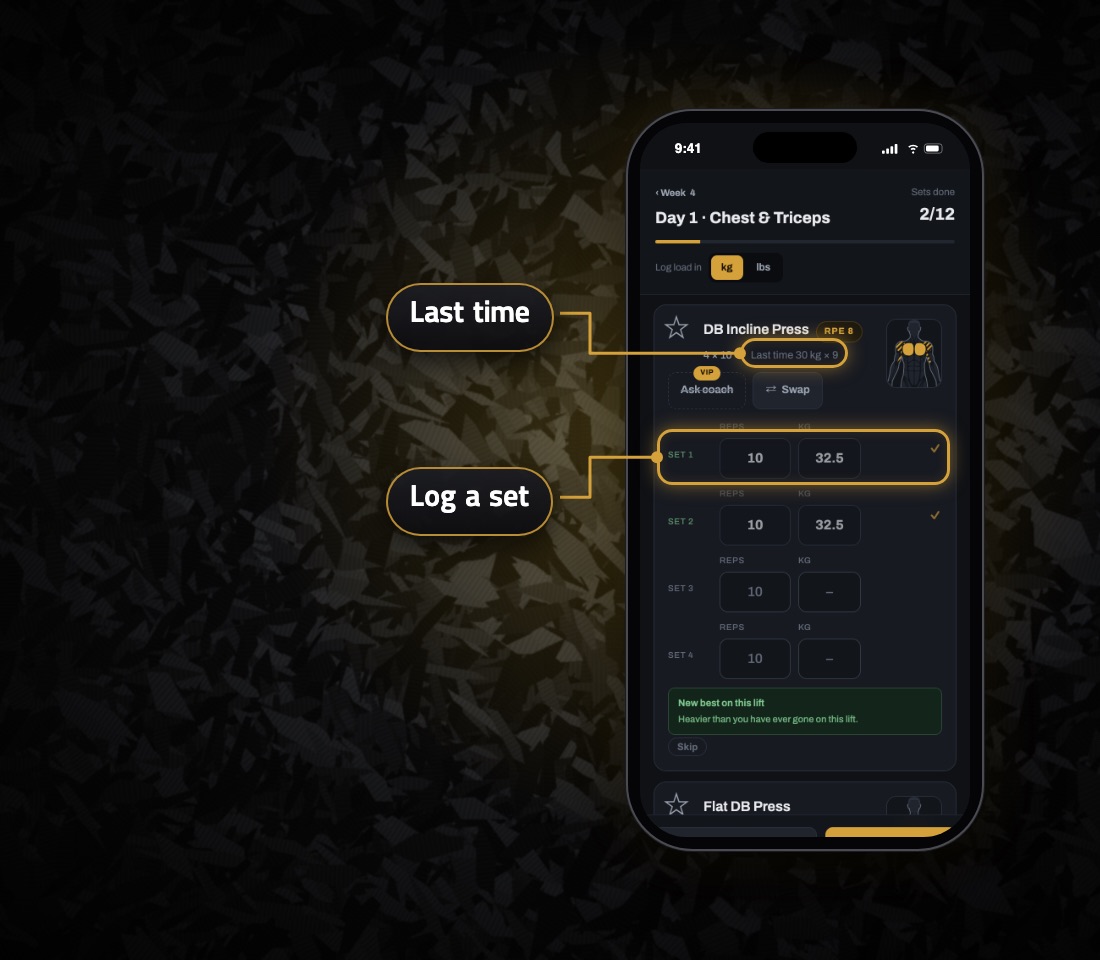
Each exercise shows the sets, reps and your coach's notes, with one row per set. Type the weight and reps you did. The set saves itself and a ✓ appears next to it. There's no save button to press.
At the top of each exercise there's a “Last time” line with the weight and reps of your last set of that exercise from a previous session. The weight you typed in the row above also shows up faded in the next row as a suggestion.
3. Supersets, drop sets and special exercises
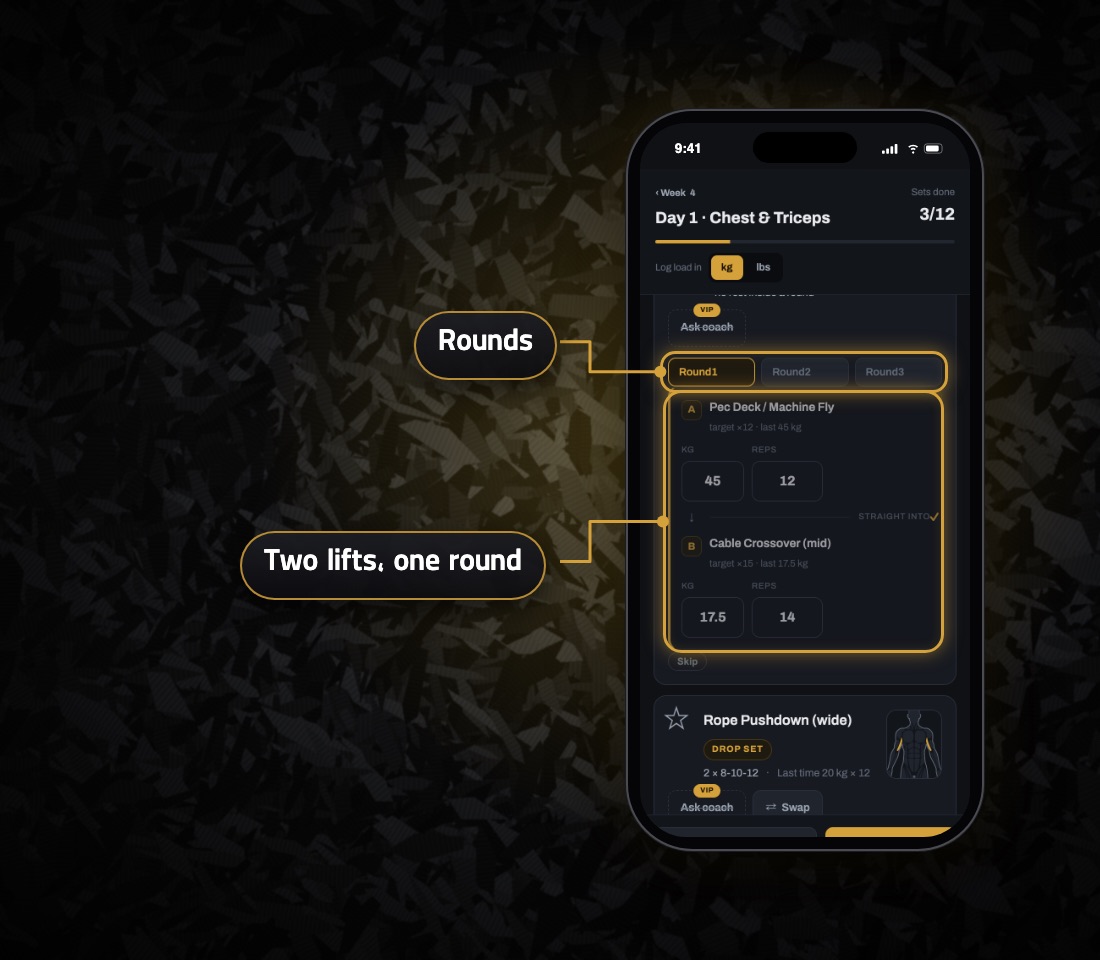
- Supersets are logged as rounds. Each exercise in the round has its own weight and reps, and the round saves itself.
- Drop sets are one set with several entries. The weight goes down and you keep going with no rest. Log each drop as you do it.
- Bodyweight, assisted and timed exercises each have their own input: added weight, how much assistance, or seconds held.
4. Machine taken? Swap the exercise
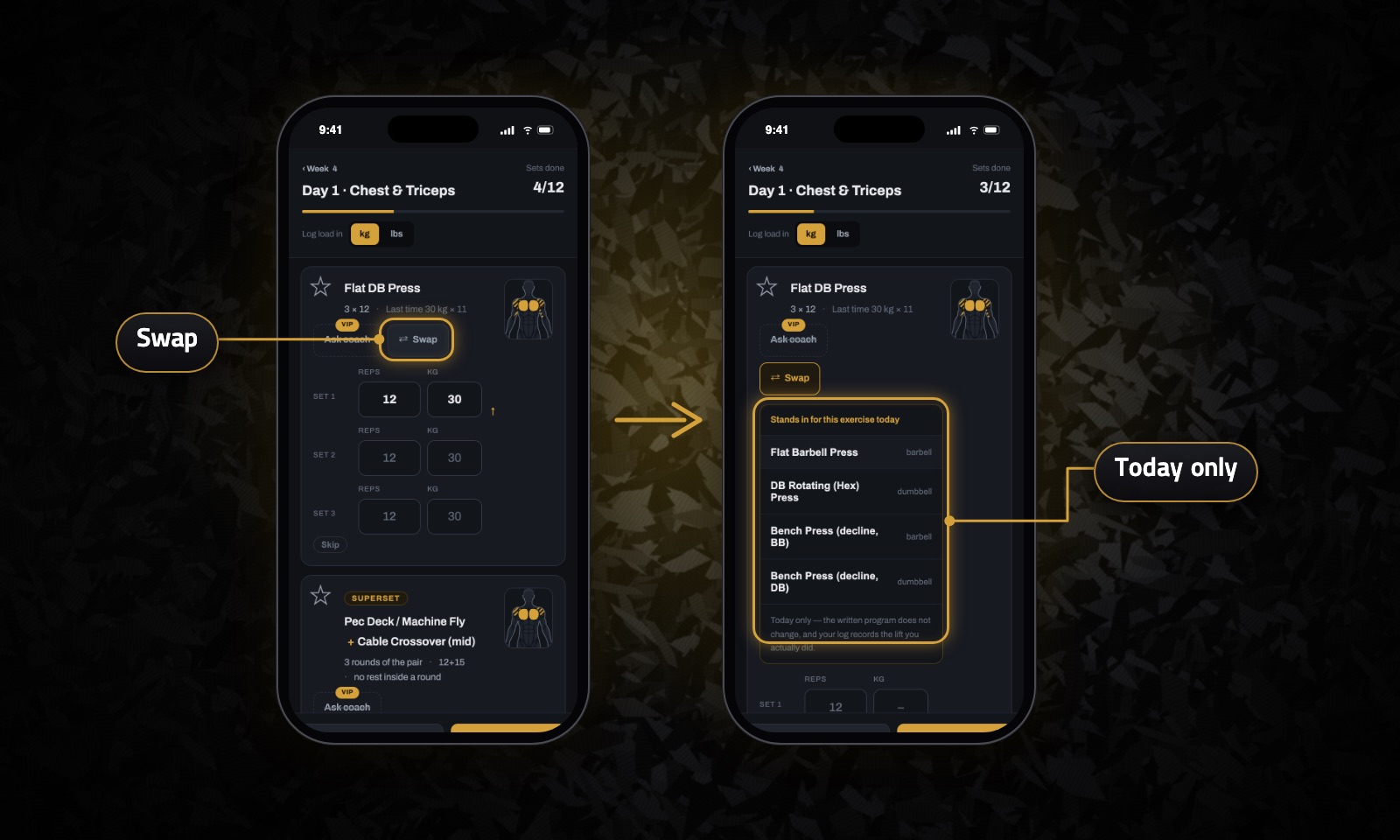
If a machine is busy or your gym doesn't have it, the Swap button suggests a few alternatives. A swap is for that day only. Your written program doesn't change, and your log records the exercise you actually did. If you can't do an exercise at all, tap Skip for that session.
5. If you lose signal mid-session
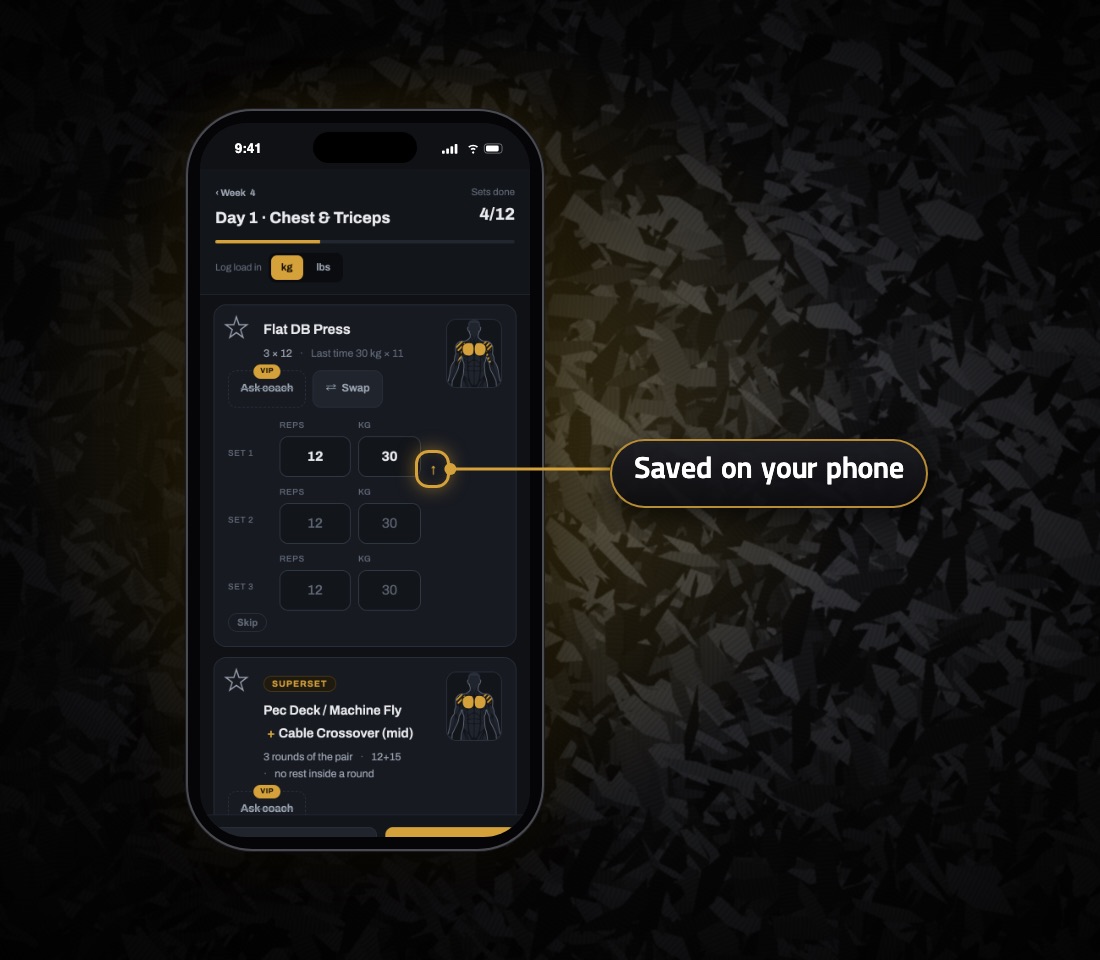
Lots of gyms are in basements with no signal. Open your training day before you lose signal, because the page won't open without internet. Then log as normal. A set logged without internet stays on your phone with a ↑ next to it, and it's sent as soon as you're back online.
6. See your records and progress
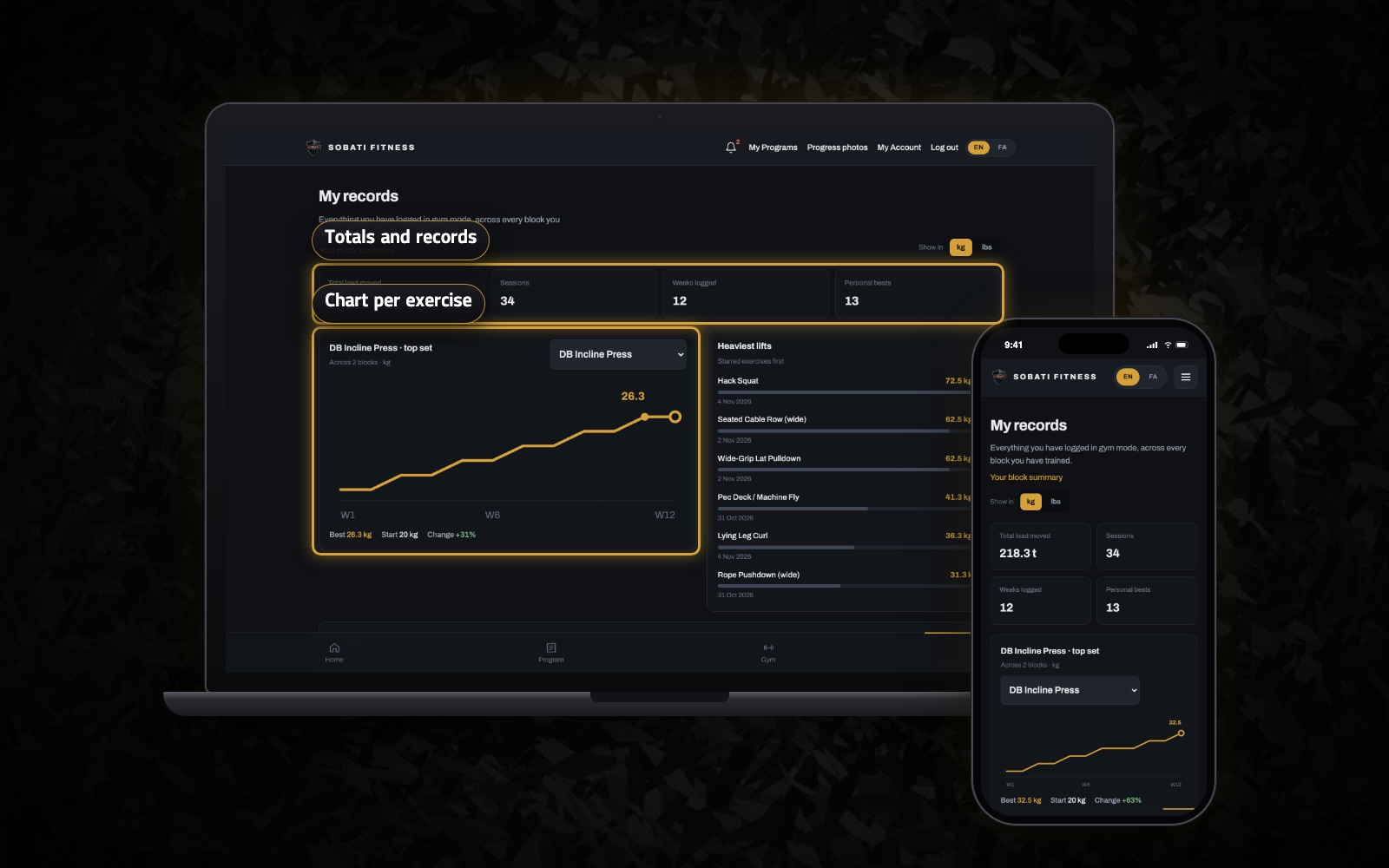
The Records tab shows you:
- your all-time totals
- your personal bests
- a week-by-week chart for each exercise
- this block compared with the last one
All of it is worked out from the sets you log.
7. Ask your coach about your form
If an exercise doesn't feel right, tap “Ask coach” on that exercise. Write your question, and add a short video if you want. This is part of the VIP packages.
Log the bad sessions too
If a set fell apart at rep 6, log rep 6. Your coach sees your log in your records and block summary, and an empty row tells them nothing.